Running a privacy program is one job. Proving your compliance efforts is another. Trying to do both at the same time can make you feel a little crazy.
Luckily, Osano’s fall updates make handling both jobs a little easier. From generating a paper trail to keeping up with the latest out of the IAB, the Osano team’s been hard at work ensuring that the platform makes it a little easier to get, stay, and prove you’re compliant.
Audit-Ready, Anytime
Sooner or later, someone asks to see your work. It might be your internal audit team checking change-management controls, an outside auditor running a SOC 2 review, or a regulator. Whoever it is, they'll want to know who changed what and when, and you should be able to answer quickly and hand over proof. Here’s the latest in how Osano helps you get audit-ready.
Search, Filter, and Export Your Form Activity Log
Your Subject Rights forms have an Activity Log that shows who changed a form, with the before and after values. Now you can search and filter that log by person, type of change, a specific setting, or date range. Then export what you're looking at as a PDF to share with your auditor. The PDF header states exactly how the export was scoped: the date range, filters, and search term.
Each PDF holds up to 100 events, so for a longer history, export one date range at a time. Search and filters work within a single form, and the log only includes changes made after it was turned on for your account.
Where to find it: Subject Rights → Forms → open a form → Activity Log tab. Available to users with write access to Subject Rights.
Pull Your Cookie Consent Activity into Your Own Tools
If your compliance reporting runs through a data warehouse or another internal system, you can pull your Cookie Consent Activity Log through the Osano API. Filter by configuration, event type, user, or date, and export as much history as you need using the API key you already have. Every record shows who made the change, what it affected, and when.
You pull the data whenever you need it, and for now it covers Cookie Consent activity. Records start on September 29, 2025, when the Activity Log began capturing events.
Where to find it: The audit log endpoint in the Osano API reference.
Find Any Assessment Faster
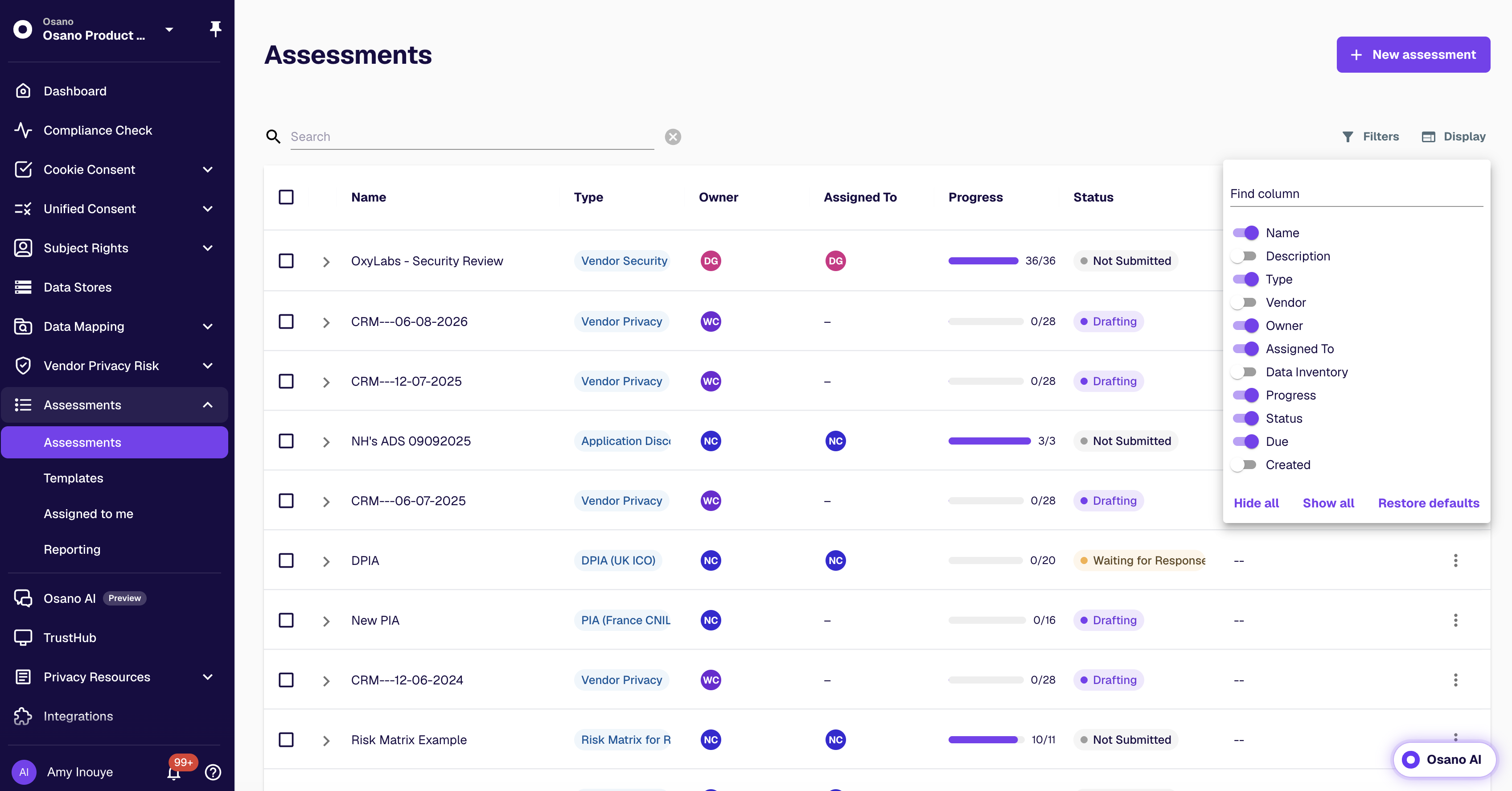
Your Assessments list is now easier to filter and sort. Add or remove columns such as type, vendor, status, progress, and who it's assigned to. Then sort by any column and filter the list, so you can check where every assessment stands without opening each one.
Where to find it: In the Assessments list. Use Display to pick your columns and Filters to narrow the list.
Show Stakeholders Where You Stand
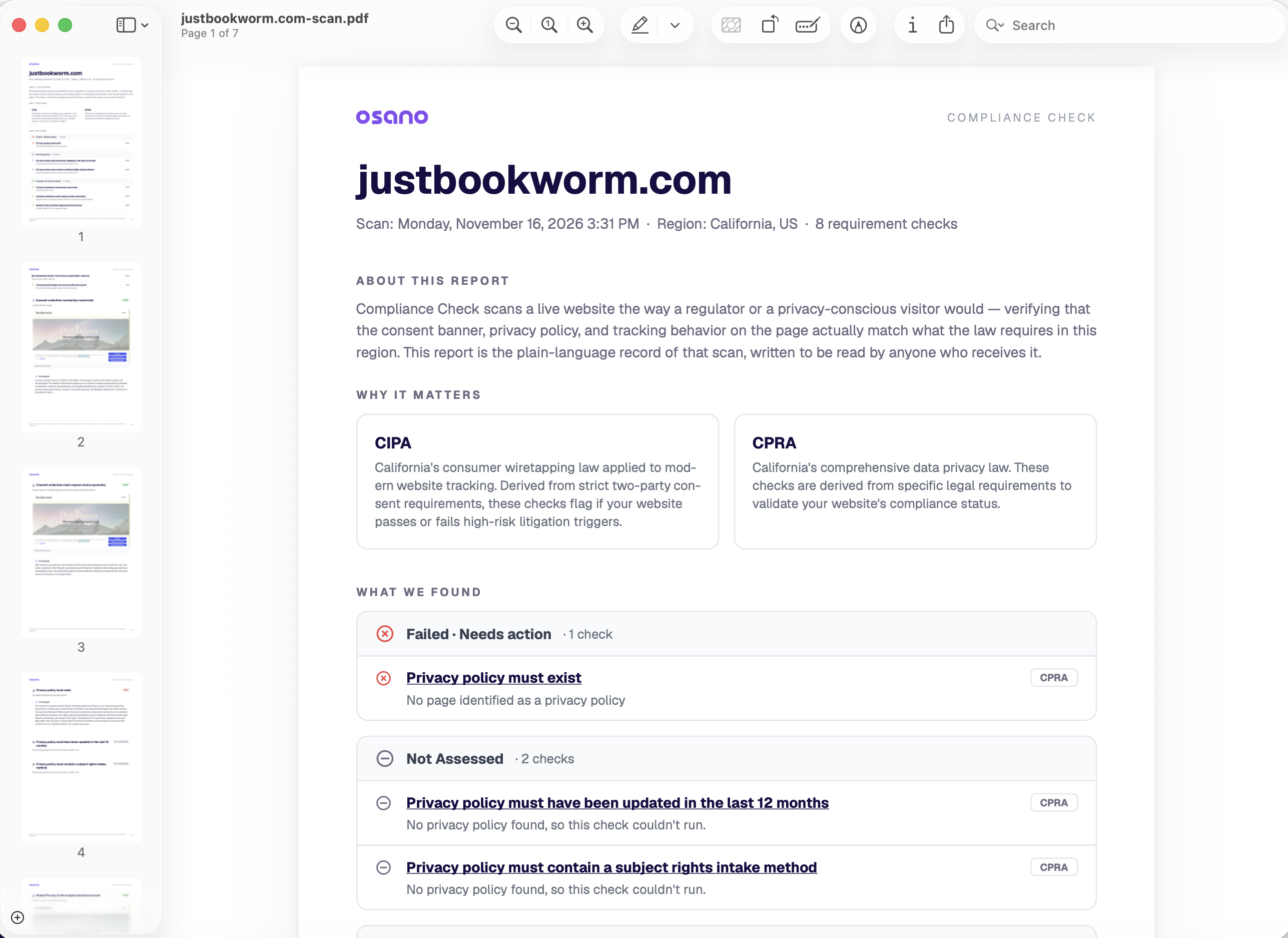
Plenty of people who care about your privacy program will never log in to Osano. Executives, legal teams, and agency partners usually see your Compliance Check results as an exported report, and for many of them, it's the only part of Osano they'll ever look at.
So we redesigned the report to read well without you in the room. It now leads with your overall standing and what to fix first, instead of raw findings. You'll see a plain-language summary of the scan and the laws it checked against, then failed checks, checks that couldn't be assessed, and checks that passed, each with a one-line result anyone can follow.
Where to find it: Open a site's scan results in Compliance Check and click Export.
A Little Cleaner Every Release
Some updates are meant to go almost unnoticed. If these just make Osano a bit easier to get around, they're doing their job.
One Navigation Bar, on the Left
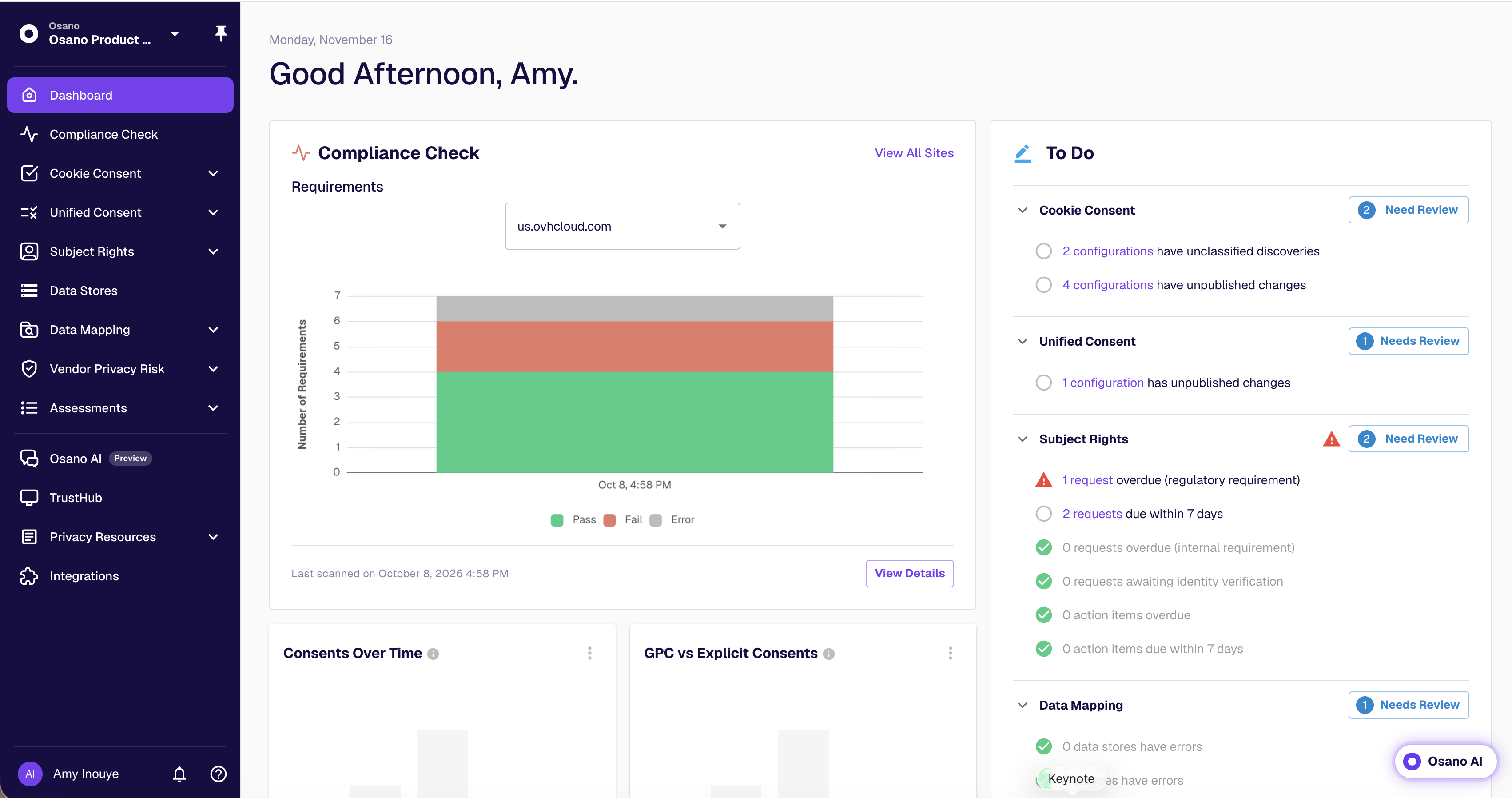
Navigation, settings, notifications, and help now live together in the left nav instead of a bar across the top, which gives every page more room. Your settings (e.g., account, users, API keys, billing) sit behind your name at the bottom of the nav, and Privacy Templates, Regulatory Guidance, and GDPR Representative are grouped under a new Privacy Resources section. Nothing was removed. If something seems to be missing, it moved.
Where to find it: Click your name at the bottom of the left nav to open your settings.
Your Forms List, at a Glance
The Subject Rights forms list now shows open requests and action items on each form, so you can spot which forms need attention without opening them. Click the number of open requests or action items on any form to jump straight to that list, already filtered to that form. You can also switch between card and table views, and copy a form's link, HTML, or embed code in one click.
Where to find it: Subject Rights → Forms.
A Modern Banner Design
Cookie banners now come in a modern design with a cleaner look, and it keeps your existing color settings. Your current configurations stay on the Classic design until you switch, while new Osano users get the modern design by default.
Where to find it: Cookie Consent → open a configuration → Styles tab.
Keeping Pace with the Standards
Consent rules keep changing. The IAB updates its frameworks, European regulators publish new guidance, and more US states pass privacy laws of their own. These updates keep Osano in step.
Clearer Notices for Cross-Device Consent
For customers using Cross-Device Consent, a visitor's cookie choices follow them across the devices where they're signed in. The IAB's Transparency and Consent Framework (TCF) Policy v5.0.b and France's data protection authority (the CNIL) call for telling visitors, before they choose, that their choices will apply across those devices. Your banners now include a short line that does this automatically.
There's also a new notice for when a visitor's choices conflict. Say a visitor rejects cookies on your site, then signs in, and their account already has "Accept All" saved from another device. The account's saved choice applies, as it always has. Now a short notice tells the visitor that their saved preferences apply and links to their preference settings so they can change them. The notice is off by default, so you can test it first. Turn it on with the Show Cross-Device Notice toggle.
Rejecting cookies now carries across signed-in devices the same way accepting does, including on IAB TCF sites.
Where to find it: If you have cross-device consent enabled, the disclosure is already on your banners. Set how long the notice stays on screen (5 to 30 seconds) from your configuration's Styles tab.
Send the IAB US National String
If you're a publisher or advertiser that has signed the IAB Multi-State Privacy Agreement (MSPA), you can now send the US National privacy string (USNAT) from your website to your ad partners. It tells those partners, in the format MSPA signatories are required to use, when a visitor has opted out of targeted advertising or the sale or sharing of their data.
To turn it on, you'll need the IAB's Global Privacy Platform (GPP) enabled on your configuration, your MSPA ID, and Do Not Sell/Share turned on for every US state. USNAT currently uses version 2.0 of the string. We'll switch USNAT configurations to version 3.0 in January 2027, ahead of the IAB's January 31 deadline, and let you know before we do. You'll just need to republish your configuration afterward.
While we were at it, we gathered all your IAB settings onto one refreshed IAB tab. The TCF vendor list also has search now, plus a filter that shows only the vendors you've selected.
Curious how these privacy strings get built? Our engineering team explains why we write our own encoders for TCF, GPP, and US Privacy strings, and how we test them against the IAB's own libraries, in "Talking TCF, GPP, and US Privacy for Real."
Where to find it: Cookie Consent → open a configuration → IAB tab. Available on plans that include IAB GPP. Setup steps are in our USNAT guide.
Choose Opt-In or Opt-Out Banners by State
You can now pick which US states see an opt-in banner and which see an opt-out banner. An opt-in banner holds non-essential cookies until the visitor agrees, while an opt-out banner runs them until the visitor says no. If you'd rather not manage it yourself, leave the setting off and Osano's default applies: opt-in banners in states with comprehensive privacy laws, updated as new laws take effect.
Where to find it: Cookie Consent → open a configuration → Advanced Settings → US State Level Banner Format.
Try Them Out
Already using Osano? Log in and try them. Your customer success manager can walk you through any of it.
New to Osano? Keeping up with IAB frameworks and state privacy laws is part of our job, so your team doesn't have to track every change alone. Book a demo, and we'll show you how these updates fit into running your privacy program day to day.